Screenshots and day replay Review an eight-hour day in eight minutes
WorkdayTracker takes a screenshot about every 30 seconds, on every monitor, and plays the day back as a film. Most trackers take three in ten minutes. You see the whole day, not a sample.
- 30 seconds
- between screenshots
- 60× replay
- a day in minutes
- All monitors
- not just the main one
Day replay
Paul Revere · 11:24 amThe day, played back
Press play and the screenshots run as a film at up to 60 times speed. Jump to any moment, slow down, and see what was on screen. An eight-hour day takes eight minutes.
- Jump
- to any moment
- Slow down
- where it matters
- 8 minutes
- for a full day
Every half hour, opened
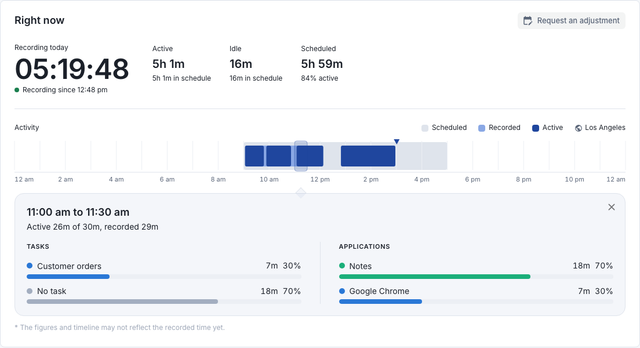
The day is laid out as a timeline of half hours. Open one and you see its screenshots, the apps and web pages in focus, the task the agent chose and how much of it was active.
Where the time went
Beside the screenshots, WorkdayTracker records which app was in front, and which web page when you turn that on. You see the time in each one, for a half hour and for the whole day.
Where the day went
Paul Revere · 15 OctoberProof, not a second job
Nobody has to watch screenshots all day. The AI reads them and tells you how the day went. The screenshots are the evidence behind every reading and every client report, there when a day asks for a closer look.
10:00 to 10:30
Paul Revere · Customer supportControl on both sides
You choose where screenshots are taken: the whole company, one team or a single agent. Where the work is sensitive, they are blurred on the agent's device before anything is uploaded. And when an agent pauses the app, no screenshot is taken. The app never records keystrokes, the webcam or the microphone.
- On or off
- per team or agent
- Blur
- on the agent's device
- Pause
- the agent's call
Questions
How many screenshots does WorkdayTracker take?
About one every 30 seconds while the desktop app is recording, on every monitor the agent has connected.
Do I have to review screenshots every day?
No. The AI reads every screenshot and tells you how each day went. You open the screenshots only when a day is worth a closer look.
Do agents see their own screenshots?
No. Agents see their own time, tasks and corrections. Screenshots are for their managers, and for clients when you choose to share them.
Can screenshots be blurred?
Yes. You turn blur on per team or per agent, and it is applied on the agent's device before anything is uploaded.
Can screenshots be turned off?
Yes. You choose where screenshots are taken: the whole company, one team or a single agent. Time is still recorded without them, and an agent can pause recording at any time.
See a manager's morning with it.
A 20-minute demo, then a free two-week pilot with your own agents.